EXCEL REPORT AUTOMATION · 9 MIN READ
Why Repeated Fields Confuse Automated Report Filling
Finding a field called “Comments” is easy. Knowing which Comments field belongs to a particular observation is the real problem. Repeated labels turn report filling from a text-matching task into a context-mapping task.
For the underlying technical principles, Microsoft's Open XML technical documentation describes workbook structures and formulas, while W3C's PROV model defines how information can be linked to its sources and transformations. These sources describe the underlying concepts, not ACTUALin performance.
Published September 28, 2026 · ACTUALin Technical Resources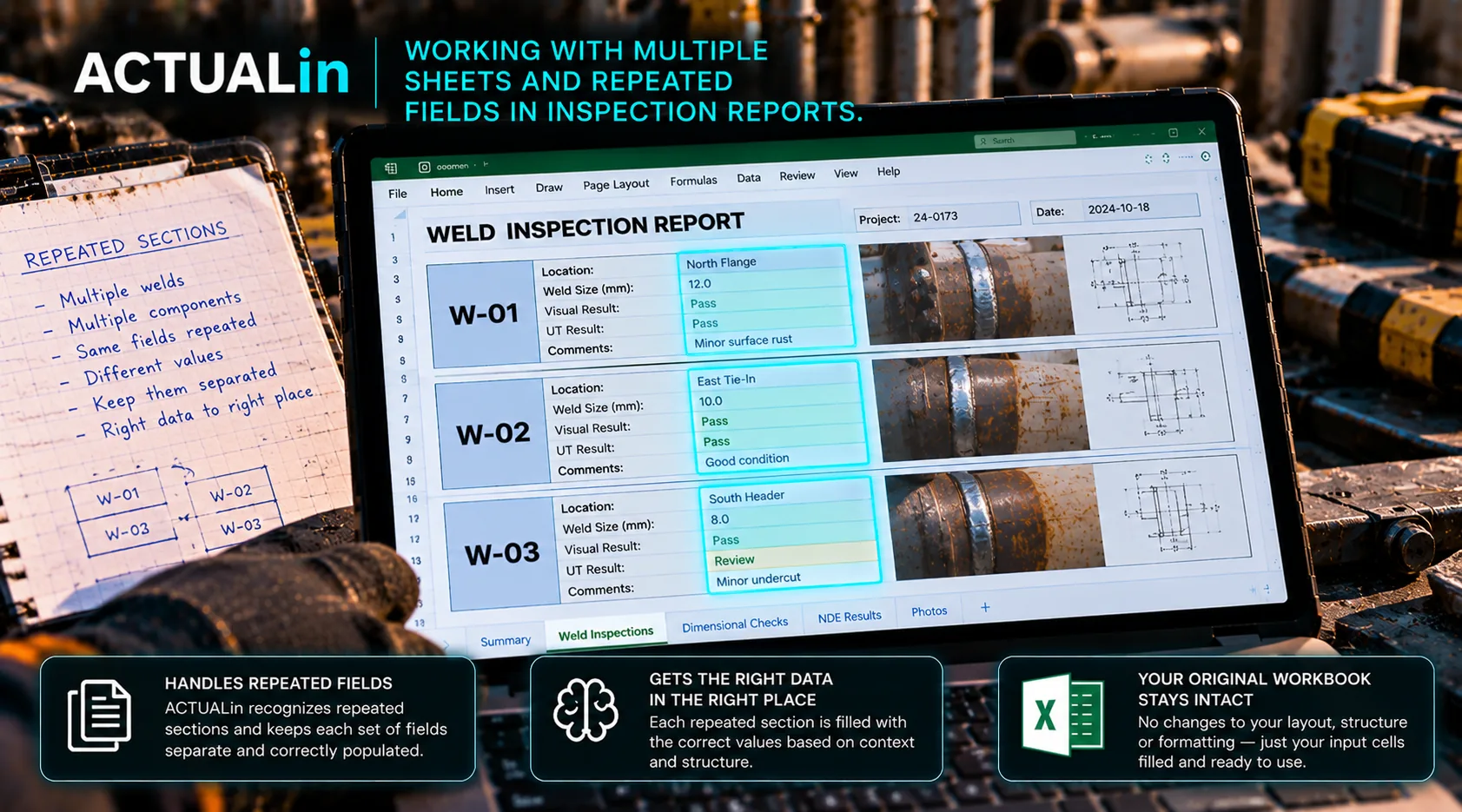
Two cells can have the same label and represent completely different inspection points. This is why filling an existing Excel report requires more than finding the first matching word.
Consider a workbook with three component sections. Each section contains a field called “Reading,” a field called “Result,” and a field called “Comments.” A technician has recorded a reading for Component C. The label matches all three sections, but only one destination refers to the inspected component.
A valid measurement in the wrong section
In this illustrative workbook, an automated lookup finds the first “Reading” label and enters the value there. The cell accepts it, and the report opens normally. Yet that first field belongs to Component A, not Component C.
The source measurement is not necessarily incorrect. Neither is the field type. The failure is the association between the measurement and the component-specific location in the workbook.
Recorded value for Component C + three “Reading” fields → select the Component C instance, or leave unresolved
This is a hypothetical example explaining the failure mode, not a claim about a measured ACTUALin customer incident.
Three pieces of context that matter
The source identity. Does the field evidence identify an asset, component, inspection area or method? A shorthand note can be useful, but only if the surrounding record establishes what it refers to.
The workbook section. A repeated field has local meaning. The sheet name, nearby Component ID, section heading and other labels help establish which occurrence is intended.
The field role. “Reading” may be a measurement input, while “Result” could be a calculated or reviewed outcome. A match on words alone does not establish that the destination is writable.
A useful proposal should identify the sheet, the component section, the field and its exact coordinate. “Write to Reading” is insufficient when that label appears more than once.
Why proximity and blank cells are unreliable shortcuts
A script might pick the first occurrence, the closest matching field or the first empty cell. All three strategies can work on a clean demonstration template and fail on a customer's actual report.
The nearest empty region might belong to a different component. A blank cell might be part of a merged layout or might not be intended for input. Another occurrence might sit on a separate worksheet with the same column coordinates.
Neither availability nor geometric distance proves the meaning of a field. The evidence and the workbook structure must agree about the destination.
Separate the association from the write
Once the system has enough evidence to distinguish the Component C field, it can propose a specific worksheet and coordinate for review. The workbook writer should then use that approved location without searching again for a similar label.
Source component + workbook section + intended field → reviewable coordinate → controlled write
The writer must still protect the workbook. A correctly identified field may contain a formula, authored content or a merged child cell that cannot safely be overwritten. Establishing meaning and establishing write safety are separate checks.
Microsoft's Open XML formula documentation explains how calculations are represented in workbook files. The W3C provenance model describes how output information can be related to its origins. These technical references support the underlying distinctions, not a claim that a particular product resolves every repeated-field case.
What happens when the component is missing?
Now remove “Component C” from the original note. The workbook still contains three matching fields, but the evidence no longer establishes which section owns the reading.
Choosing the third field because it happens to be empty, or because the photo sequence suggests that component, would invent a relationship that was not reliably recorded. The correct outcome is a held proposal that shows the competing destinations and asks for clarification.
In a controlled reporting workflow, an unresolved value is visible. A plausible measurement entered into the wrong component section may escape notice.
Test the repeated instance, not just the label
A useful compatibility test includes repeated labels across sections and sheets, similar component names, a missing source identifier, and formula cells near legitimate inputs. Change the ordering of components between test workbooks to catch rules that depend on position.
Verify which destinations are proposed, which stay unresolved, and whether the writer leaves formulas and unrelated fields intact. These are recommended test conditions rather than claims of universal support in ACTUALin.
The goal is simple: a report entry should carry the meaning of the original evidence into the correct component-specific location. Merely finding a cell with the right label is not enough.