EXCEL REPORT AUTOMATION · 9 MIN READ
Can You Automate an Excel Report Without Destroying Its Formatting?
Yes, but only if preservation is treated as a requirement, not a cosmetic cleanup step. Existing reports contain formatting, layout and workbook behavior that can be lost when automation rebuilds the spreadsheet instead of modifying it carefully.
For the underlying technical principles, Microsoft's Open XML technical documentation describes workbook structures and formulas, while W3C's PROV model defines how information can be linked to its sources and transformations. These sources describe the underlying concepts, not ACTUALin performance.
Published September 28, 2026 · ACTUALin Technical Resources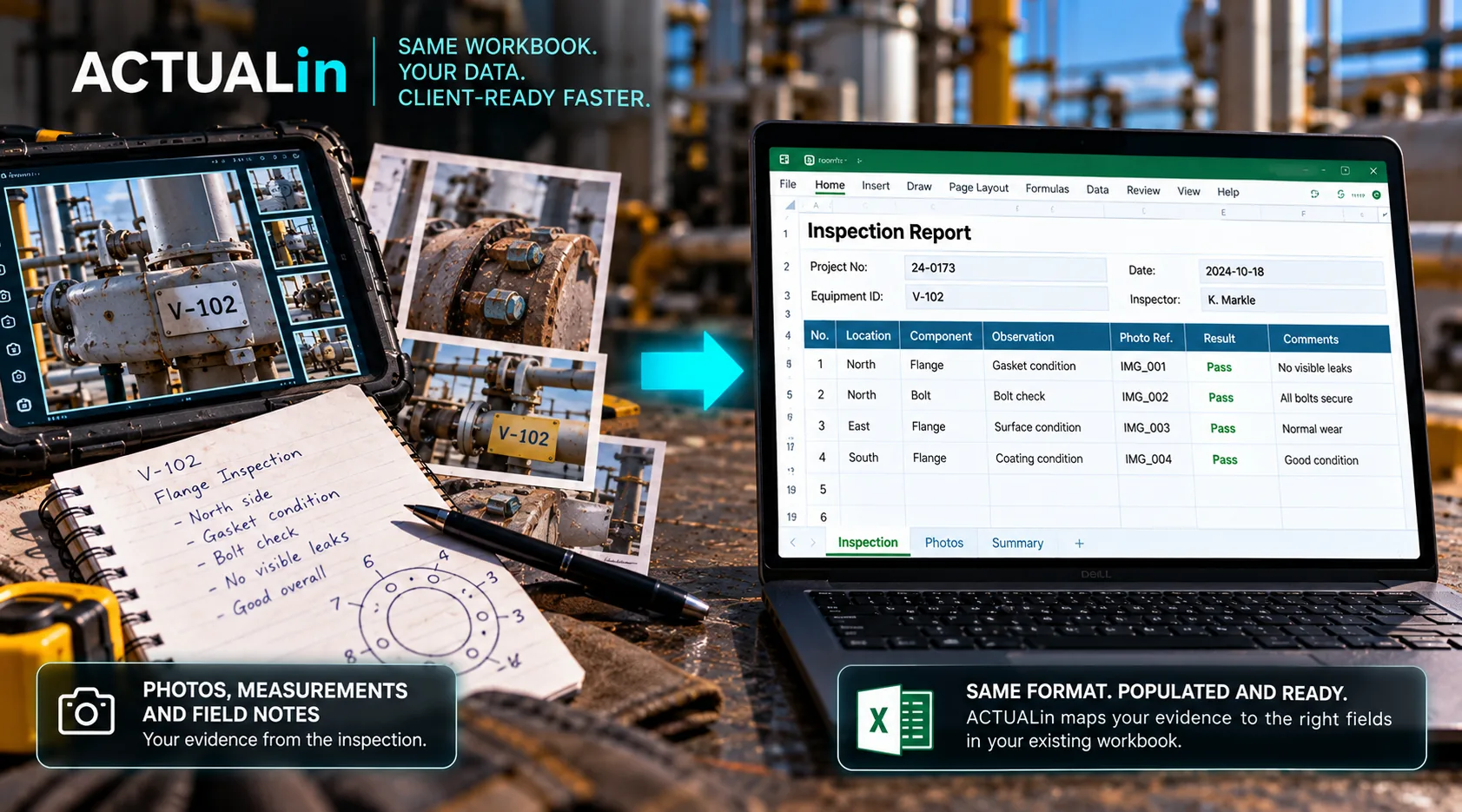
A customer can receive an Excel report with every requested measurement entered correctly and still reject the file. The values may be right while a formula has been overwritten, a merged section has changed or the print layout no longer produces the expected report.
The distinction matters because populating an existing customer workbook is not the same task as exporting data to a new spreadsheet. The existing document has authored behavior, not merely a grid of empty cells.
Start with the workbook, not a blank export
Consider a representative inspection workbook containing a styled measurement input, a formula-driven result, a merged heading, a customer logo and a defined print area. This is an illustrative compatibility example, not a claim that a particular customer workbook was tested successfully.
The desired change might be simple: add a recorded thickness value to one approved input cell. That does not authorize changing the formula beside it, recreating the merged heading, resizing the surrounding columns or replacing the worksheet with a lookalike copy.
Original workbook + approved input coordinate + recorded value → narrow write → preservation checks
Excel files contain related structural parts. Microsoft's Open XML formula documentation explains how formulas are represented in workbook files. The W3C provenance model offers a separate framework for connecting derived outputs to their sources. Neither reference proves that an arbitrary software tool can preserve every Excel feature.
Five things to compare after generation
Formulas and values. The report writer should modify only approved input cells. Verify that formulas remain formulas, not their last displayed values, and that other authored content remains intact.
Merged regions and dimensions. A merged cell is not simply several interchangeable blanks. Confirm that the merge ranges, row heights, column widths and hidden layout elements still match the original where no change was authorized.
Cell styles and number formats. Borders and fill colors may distinguish evidence fields from calculations. Dates, percentages and measurements can display incorrectly if their number formats are lost, even when raw numeric data is unchanged.
Existing images and drawings. Logos, reference diagrams and previously embedded photos must remain present. Adding a new evidence photograph does not grant permission to discard the workbook's existing drawing objects.
Print behavior. Check the relevant print area, scaling, orientation and page breaks in the spreadsheet application. Structural validity does not guarantee that a client-facing report still prints as intended.
Why a successful file write is not enough
Suppose automation writes a valid measurement into a cell inside a formula region. The XLSX may still open. Its data might look plausible. Yet the workbook's calculation behavior has changed. An operation that technically succeeds can fail the document-preservation requirement.
There is a related issue with merged cells. A visually empty cell inside a merge is not necessarily a valid destination. The writer needs to understand which cell is the merge's writable anchor and whether that entire area is intended for the proposed content.
A controlled write should therefore have a small authorized scope and explicit refusal conditions. If the intended destination has a formula, conflicts with authored content or cannot be preserved safely, the write should be held for review rather than moved to the next convenient blank.
Build a preservation test from two copies
Keep an unmodified copy of the customer's workbook as the baseline. Apply a known set of approved test inputs to a separate copy. Then compare the two files, allowing only the requested changes.
Baseline XLSX → approved test writes → output XLSX → structural comparison + visual review
Automated comparisons can check formula text, merge ranges, styles, dimensions, worksheet names, existing content and other properties. Visual inspection in Excel or the actual client application remains valuable for page layout and drawing behavior. Neither method replaces the other.
This is a proposed acceptance-test method, not a claim that every listed workbook feature is already automatically verified across ACTUALin customer uploads. Compatibility must be established for the actual workbook and output requirements.
Know when not to modify the file
Legacy workbooks can contain unusual drawings, unsupported extensions, protection rules or customer-specific structures. A preservation-first workflow should disclose such limitations, protect existing content and block an unsafe operation rather than silently rebuilding the document.
This is also why creating a new spreadsheet with the right values is not evidence that the original customer report has been populated correctly. Recreating appearance is not preserving workbook behavior.
For a related issue, see how merged cells complicate report automation. That article addresses the structure of a particular workbook feature; the preservation test here addresses the complete deliverable.
The practical acceptance criterion
The report should contain the intended new evidence in the correct places, while everything outside the approved change remains as it was. If that cannot be demonstrated, the result needs further review regardless of whether the file opens successfully.
That standard respects the customer's workbook as the deliverable, rather than treating its layout and formulas as optional decoration.