EXCEL REPORT AUTOMATION · 9 MIN READ
Why Automating an Existing Excel Report Is Harder Than Filling Cells
Putting a value into an Excel cell is easy. Determining which cell should change, which cells must not change and how to preserve the workbook around that write is the real automation problem.
For the underlying technical principles, Microsoft's Open XML technical documentation describes workbook structures and formulas, while W3C's PROV model defines how information can be linked to its sources and transformations. These sources describe the underlying concepts, not ACTUALin performance.
Published September 26, 2026 · ACTUALin Technical Resources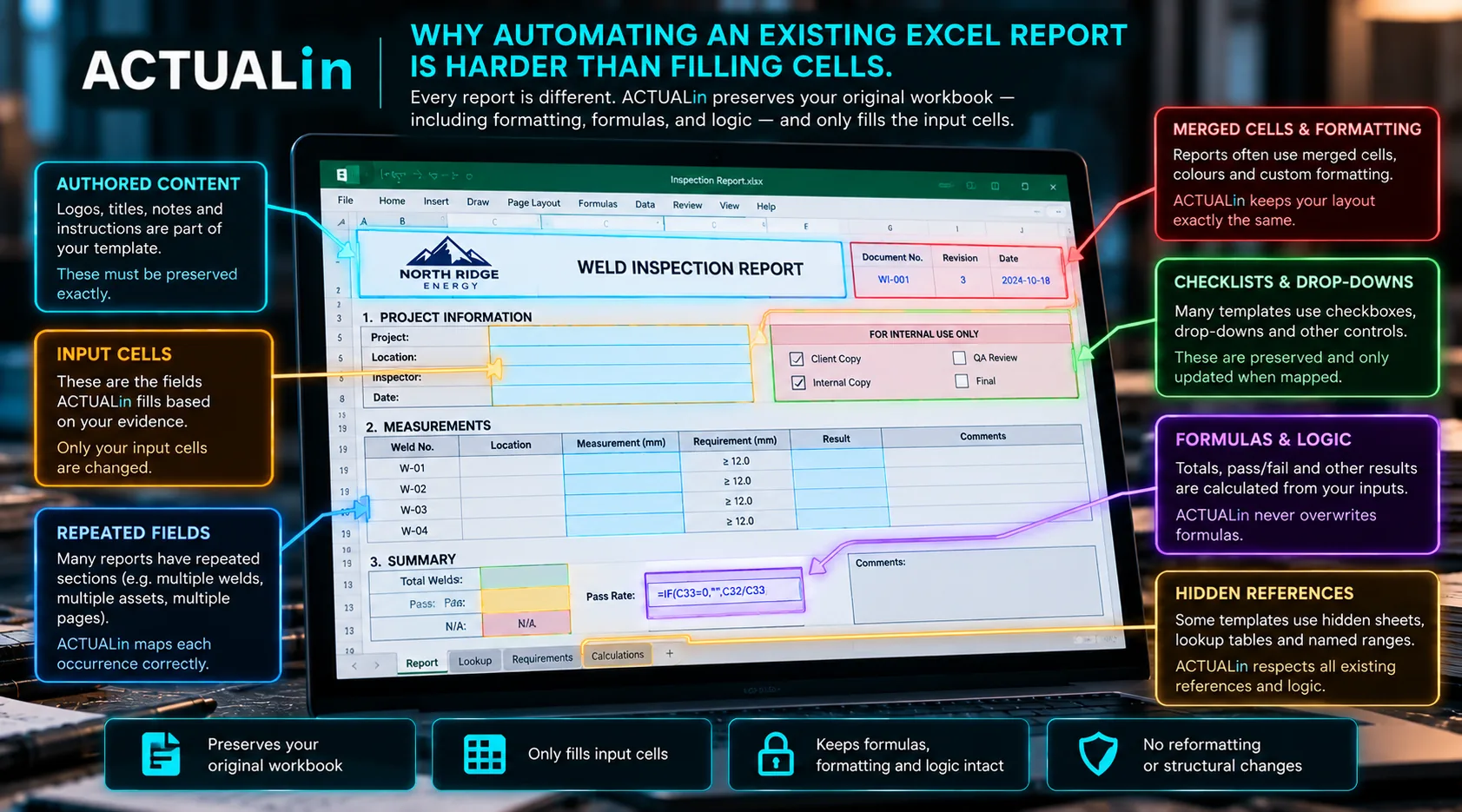
Automating an existing Excel report is hard because the system must identify where each fact belongs without overwriting formulas, authored content or repeated fields. Technical spreadsheets often contain merged layouts and hidden logic. Safe automation requires workbook interpretation, source-to-cell association and approval before exact, limited writes are performed.
At first glance, automating an Excel report sounds simple. Read the field evidence, find the corresponding field in the workbook and write the value into the cell.
Describing Excel report automation as simple cell filling hides most of the difficult work.
A real technical report is not a blank grid. It is a structured document built inside a spreadsheet. Cells can contain formulas, labels, instructions, references and existing results. Sections can repeat.
Merged ranges can change which coordinate actually owns a value. Formatting can communicate report structure. Hidden sheets can support calculations or lookups.
The challenge is therefore not whether software can write to Excel. It is whether the software can understand enough of the workbook to know when a write is correct.
Why is automating an existing Excel report harder than filling cells?
Existing Excel reports require the system to identify safe destinations and protect formulas, merged regions and existing content before writing. Libraries can modify an Excel file by address. If the correct destination is already known, writing a value to a coordinate such as D14 is straightforward.
Technical report automation starts earlier. The system must answer several questions about D14:
- What does D14 represent?
- Is it an input field or a calculated result?
- Is it part of a merged range?
- Does the same label appear elsewhere?
- Is there already authored content in the cell?
- Does the evidence actually identify the section that D14 belongs to?
Checks for formula cells, merges, existing content and evidence ownership determine whether the destination is appropriate.
Evidence + workbook structure → determine intended destination → check write safety → human review → modify approved coordinate
Skipping those earlier decisions can produce a workbook that opens normally and still contains the wrong information.
Formulas make blank-looking output deceptive
A report may contain cells whose displayed values are calculated from other inputs. Writing directly over a formula can replace workbook logic with a static value.
That is especially dangerous because the resulting spreadsheet may initially look correct. The visible number remains, but the calculation that should update it later is gone.
A safe writer should treat formulas as protected workbook logic unless there is an explicit reason to change them. The automation target is usually the intended source input, not the calculated output.
Merged cells change what a coordinate means
Merged ranges are common in formatted reports. Visually, several cells may appear to be one field, but the spreadsheet stores the value in the master cell of that merged region.
Writing to another coordinate inside the merge can fail, be ignored or damage the intended structure depending on how the file is manipulated.
More importantly, merged regions often describe layout. Understanding them helps distinguish headers, section labels and actual input areas.
Repeated labels create semantic ambiguity
Consider a workbook containing five sections that each include “Location,” “Reading,” “Result” and “Comments.” A text search can find all five. It cannot determine which one belongs to a particular measurement.
The correct destination depends on surrounding context: the component, area, method, sequence, nearby labels or other evidence that identifies the intended section.
This is why a field-name-to-cell-address map is not enough for many technical reports. The same field name can be valid in several places.
Existing content should not be treated as disposable
Not every non-formula cell is available for automation. Workbooks can contain authored instructions, customer information, acceptance criteria, previous controlled text or values that are intentionally pre-populated.
A system that treats every non-formula cell as writable can overwrite meaningful report content while technically producing a valid Excel file.
Controlled writing requires a distinction between intended input locations and content that should remain untouched.
Formatting can be part of the document
Fonts, fills, borders, alignment, number formats, row heights and column widths are often dismissed as presentation. In technical reports they can also define sections, identify headers, distinguish input areas and control how results are interpreted visually.
Rebuilding a workbook from extracted values risks losing those details. Directly modifying the original package can preserve much more of the document, but it also requires discipline: make the smallest necessary change instead of regenerating everything.
Hidden and reference content still matters
Some workbooks use hidden sheets, lookup tables, named structures or reference cells to support what appears on the visible report. A user may never interact with those areas directly, but formulas and validations can depend on them.
Automation that only considers what is visibly rendered can miss relationships that are important to workbook behavior.
This does not mean every hidden cell should be interpreted as a report field. It means preservation should assume that workbook content has a purpose unless there is a clear reason to alter it.
A correct value in the wrong place is still wrong
This is one of the most important failure modes in report automation. The evidence may be accurate. The extracted value may be accurate. The workbook may remain structurally valid. But if the value is written to the wrong repeated section, the report is incorrect.
That kind of error can be harder to notice than a missing value because the result looks plausible.
For technical reporting, a blank or blocked association can therefore be safer than a confident guess. The system should be able to say that it does not have enough context to choose between possible destinations.
Human review works best before the write
If the only review happens after a workbook has been generated, the reviewer has to discover mapping mistakes inside the completed document.
A proposed-change layer makes the decision visible earlier. The user can see the evidence, proposed destination and value together, then approve or reject the association before the workbook is modified.
Interpret first → propose exact changes → review uncertainty → write only approved locations
That separation also makes the automation easier to reason about. Interpretation can be flexible; workbook modification can remain strict.
Preservation and interpretation are separate engineering problems
There are really two systems inside reliable Excel report automation.
The first interprets the workbook and evidence: what does the report contain, what does the evidence mean and where does the information probably belong?
The second is deliberately less creative. It takes approved coordinates and performs controlled changes while protecting formulas, merges, existing content and workbook structure.
Combining those responsibilities into one unrestricted “AI edits spreadsheet” step makes it harder to enforce a safe boundary.
The ugly workbook is the useful test
A clean template with unique labels and obvious blank fields proves very little. Real compatibility appears when the workbook contains the structures that make automation difficult: repeated labels, merged cells, formulas, hidden references, pre-existing content, unusual formatting and multiple sheets.
Testing those cases is not edge-case polish. It is how a reporting system learns where confident automation should stop.
The goal is a smaller change surface
Reliable automation does not need to understand Excel in the abstract. It needs enough understanding to identify the intended report changes and enough restraint to leave everything else alone.
That is why automating an existing Excel report is harder than filling cells. The successful result is not merely a spreadsheet containing the right values. It is the original report, with the right approved information in the right places and the rest of the workbook still behaving as intended.