EXCEL REPORT AUTOMATION · 9 MIN READ
Why Merged Cells Make Excel Report Automation Difficult
A merged field looks simple in Excel. For automation, it creates a structural question: which coordinate actually owns the value, which cells are only part of the visual region, and can the workbook be modified without disturbing the layout?
For the underlying technical principles, Microsoft's Open XML technical documentation describes workbook structures and formulas, while W3C's PROV model defines how information can be linked to its sources and transformations. These sources describe the underlying concepts, not ACTUALin performance.
Published September 28, 2026 · ACTUALin Technical Resources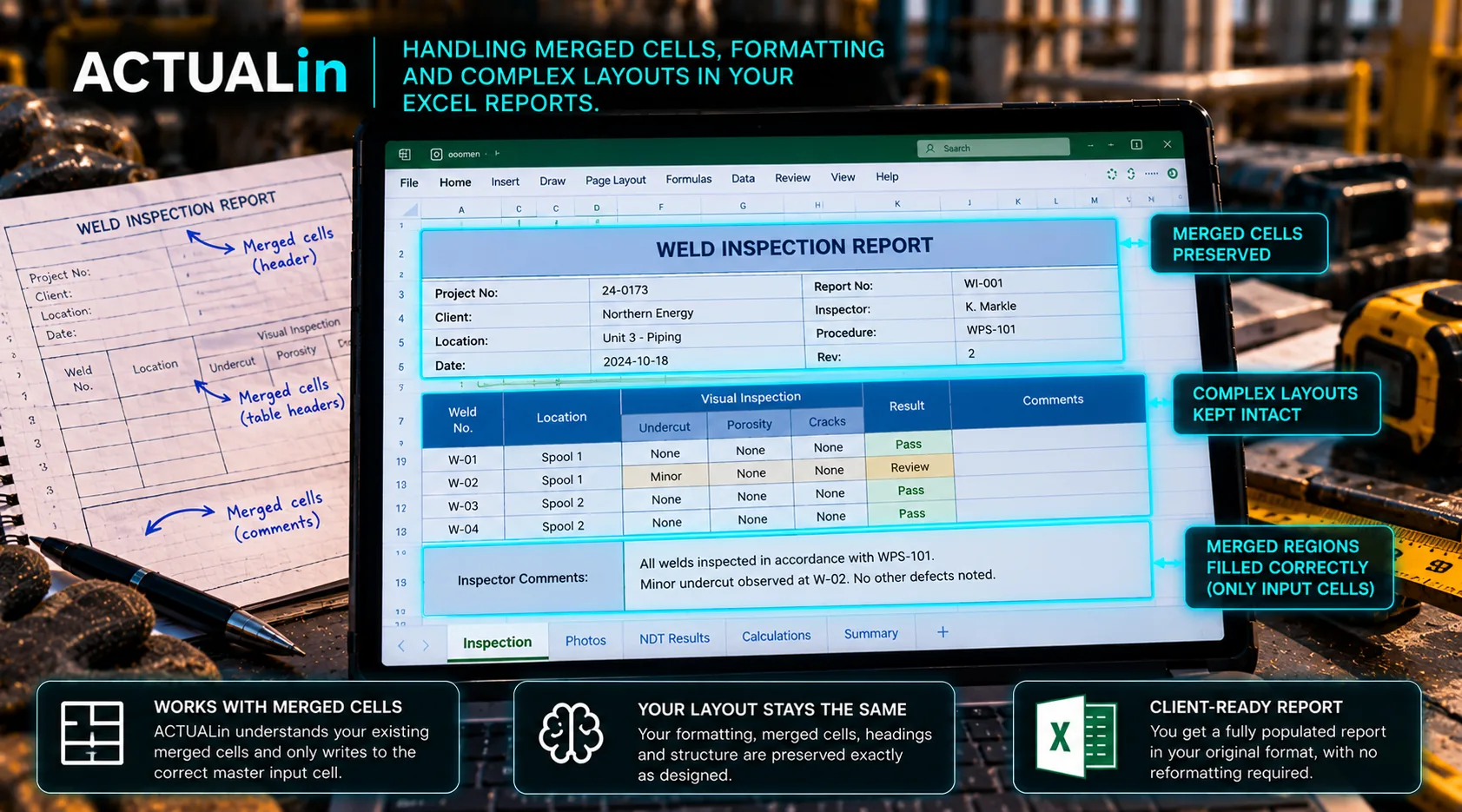
A merged cell can look like one large blank field in Excel while occupying several coordinates underneath. That difference matters when software tries to populate an existing customer report. The visual field might be appropriate for a comment, but the proposed write can still target the wrong coordinate.
Consider a hypothetical worksheet where the label “Comments” appears in A8 and B8:D8 is merged to make room for a longer observation. A person sees one input area. An automation script that scans blank cells might see B8, C8 and D8 as separate candidates. They are not equivalent destinations.
One visible field, one master coordinate
For the merged range B8:D8, B8 is the upper-left master cell and normally owns the stored value. The other coordinates are covered by the merge. A workbook writer must inspect that structure instead of assuming every visually blank coordinate accepts an independent entry.
Visible comments box B8:D8 → merge master B8 → permitted write only after field and content checks
The master coordinate is not automatically approved just because it is structurally writable. It may already contain authored text or another protected value, or the source observation may refer to a different inspection section.
When the same merged field appears twice
Now imagine that a second component section uses a similar comments box at B24:D24. Both merged regions have legitimate master cells. Only one, however, may correspond to an observation recorded for Component B.
Choosing B8 simply because it occurs first would be a semantic error. Choosing C24 because it looks empty would be a structural error. A safe workflow needs the source component identity, the destination section and the exact allowed coordinate before writing.
The Microsoft Open XML spreadsheet documentation describes the file structures behind Excel workbooks. The NIST guidance on metrological traceability addresses documented measurement relationships. These references provide background on workbook structure and evidence traceability; neither establishes that a particular merged region is safe to populate.
Two separate reasons to refuse a write
The evidence is ambiguous. A comment may fit the intended field type but lack the asset or section identity required to choose between identical merged blocks. The mapping should remain unresolved rather than selecting the first match.
The coordinate is unsafe. Even with a confirmed section, the proposed location may be a covered merged child, a formula cell or a master containing existing customer content. The writer should reject or flag that change rather than unmerge the area, erase content or search for the next blank cell.
Evidence check: correct report section? Structural check: legitimate writable cell? Both required.
A highly confident interpretation of the comment does not override the workbook's structural rules. Conversely, a valid merge master does not prove that the observation belongs there.
How to test a merged-cell report
Start with a copy of a representative workbook. Include two repeated merged inputs, a covered child coordinate, an occupied master, a nearby formula and a worksheet with the dimensions and print setup used by the customer. These are proposed compatibility tests, not reported ACTUALin performance results.
Record the approved source value and destination, then check the generated XLSX against the original. Confirm that the intended master receives the approved value while merge definitions, formulas, authored content, styling and print settings outside the approved change stay intact. Verify the output visually in the spreadsheet application as well.
A useful negative test deliberately proposes writing into C8 rather than B8. The correct behavior is to block or explicitly normalize that proposal through reviewed rules, not to silently write to a covered coordinate. Another negative test removes the component identifier so the two merged comments sections cannot be distinguished.
Preserve the customer's structure
Unmerging cells to simplify automation can change the deliverable. Reconstructing an approximate copy of the worksheet can also lose formulas, dimensions, drawings or print behavior. A preservation-first approach works within the original workbook wherever a safe, approved write exists and stops when it cannot establish one.
For the larger acceptance-test question, see how to verify Excel workbook preservation after automation. The narrower lesson here is that one visible field is not always one ordinary cell, and a supported observation still needs both the right field and the right writable coordinate.