 ACTUALin
EXCEL REPORT AUTOMATION · 9 MIN READ
How Report Automation Should Handle Existing Excel Formulas
When a customer workbook already contains formulas, those formulas are part of the report's authored logic. Good automation supplies the supported inputs and protects the calculation instead of replacing it with a convenient value.
For the underlying technical principles, Microsoft's Open XML technical documentation describes workbook structures and formulas, while W3C's PROV model defines how information can be linked to its sources and transformations. These sources describe the underlying concepts, not ACTUALin performance.
Microsoft's Open XML documentation explains the structure and behavior of Excel files; the W3C provenance model explains relationships between information and its origins.
Published September 28, 2026 · ACTUALin Technical Resources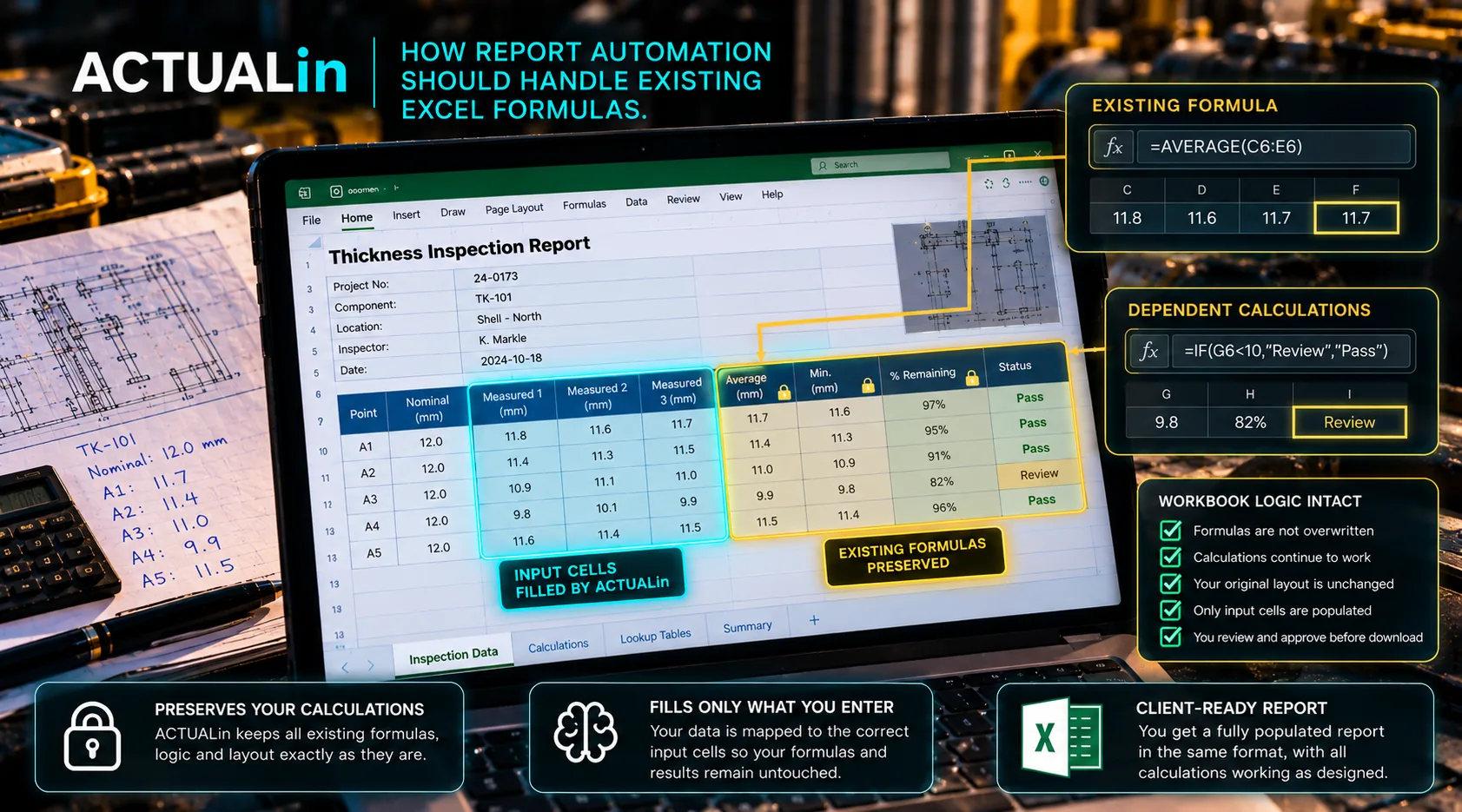
An Excel report can show the correct calculated result and still be damaged by automation. If software replaces the cell's formula with a fixed number, the report may look fine today but stop updating when its inputs change.
For customer-required workbooks, preserving the calculation is often more important than reproducing its current displayed value. The automation task is to identify legitimate input fields, transfer approved evidence into those fields and leave authored calculation logic intact.
A result cell is not an input field
Consider an illustrative inspection worksheet where B12, C12 and D12 hold three recorded measurements and E12 contains =AVERAGE(B12:D12). A technician has another measurement to enter into an approved input field. Writing a numeric result into E12 would replace the formula, even if the displayed value happened to match the expected average.
Recorded readings → approved input cells → existing average formula → calculated report result
The workbook's calculation may include more than a simple average. Real customer templates can reference other sheets, apply rounding or check conditions. A system should not reconstruct a formula based on what it appears to do. This example explains the preservation rule; it is not an ACTUALin customer test result.
What the writer must inspect before changing a cell
First determine whether the proposed coordinate is the right report destination for the source evidence. Then examine the existing workbook structure independently. Does the cell already contain a formula? Is it part of a merged region? Does it contain authored content that the user has not approved for replacement?
A semantic mapping proposal can be plausible while the intended coordinate is unsafe. The correct response is to hold the write and show the reason, not replace the formula or choose a neighboring empty cell.
The Microsoft documentation on formulas in Open XML spreadsheets explains how calculations are stored in XLSX files. The W3C provenance primer discusses relationships between recorded information and downstream results. Neither reference establishes that any particular tool safely handles all formula structures.
The displayed value can be misleading
An XLSX formula cell may include a cached value from its last calculation. When a generator changes input cells without evaluating the workbook's formulas, the displayed result may remain stale until a spreadsheet application recalculates it.
That creates two different validation questions: was the formula preserved, and has the displayed result been recalculated correctly? Checking that the output file opens answers neither question by itself.
Calculation behavior can vary across spreadsheet applications and workbook settings. The generated report should therefore be inspected in the environment used for delivery, without treating a request for recalculation as proof that the displayed result has refreshed.
Build a formula-preservation test
Keep an untouched baseline XLSX and make a separate copy for test writes. Include a normal formula, a formula with a cached result, a reference to another sheet, a formula beside a merged range and a calculated status field. Also include a legitimate input cell containing a value that the test explicitly permits changing.
Verify that approved inputs change at the intended coordinates while formula definitions and unrelated workbook content remain intact. Intentionally propose a write directly to a formula cell: that attempt should be rejected or explicitly escalated, not silently accepted.
Baseline workbook + approved input changes → compare formulas, inputs and recalculated output
These are recommended compatibility tests, not claims that ACTUALin has validated every formula type or spreadsheet application. For a broader comparison of the output document, see the workbook preservation checklist.
Keep technical authority where it belongs
Formula-driven statuses and pass/fail fields may encode customer or procedure-specific rules. An AI-generated conclusion should not replace that logic simply because it produces a convincing sentence or number. The responsible technical reviewer still has to assess whether the source evidence and applied criteria support the final report.
If an existing formula contains an error, report automation should surface that condition rather than silently rewriting it as part of routine data transfer. Formula repair or replacement is a separate, explicitly approved task.
The workable boundary is straightforward: populate supported inputs, preserve existing calculations, verify the generated file and leave technical authorization with the accountable reviewer.